One Owner, Seven Hats — and an AI Connector for Each
Run a children's activity business and you already know the secret nobody warns you about: you don't have one job, you have seven. You're the operations manager on Sunday night building next term's schedule, the marketer on Monday, the bookkeeper chasing an unpaid invoice on Tuesday, the customer-care desk answering the same three parent questions on Wednesday, the email assistant to your own inbox on Thursday, and the analyst trying to work out on Friday why one venue is quietly emptying.
Not sure how far AI has got into your own business? The AI ladder self-check takes a minute and tells you which of five levels you are on and what to try next.
In the piece that opened this series, we made the case that this is the year AI stops being a chat toy and starts doing the work — through connectors (Anthropic's name for MCP, the open standard that lets an AI tool reach into an app and act, not just talk). That was the why. This is the how: one concrete recipe per hat, the honest version of each, and the two-line "what to connect" for every one.
No hype. Where a recipe genuinely works in one click, we say so. Where it needs a middle step or a paid tool, we say that too — because a recipe that doesn't run when you try it is worse than no recipe at all.
The seven hats at a glance
| Hat | The recipe | Works today | What to connect |
|---|---|---|---|
| Operations | A photo of your timetable → a live, bookable term | ✅ One-click | Booking connector (Zooza) |
| Reporting | Ask "who hasn't paid?" in plain English | ✅ One-click | Booking connector (Zooza); GA4 optional |
| Invoicing | Turn bookings into accounting invoices | ⚠️ Extra step | Xero connector / broker |
| Customer care | Triage the inbox, draft correct replies | ✅ One-click | Gmail + booking connector |
| Email assistant | Draft follow-ups, hold make-up slots | ✅ One-click | Gmail + Calendar |
| Marketing | A term of social posts + a video invite | ⚠️ Publish elsewhere | Google Drive (+ scheduler) |
| Content | Draft blog & class copy from your own assets | ✅ One-click | Google Drive + booking connector |
First — how a connector actually works (once, then never again)
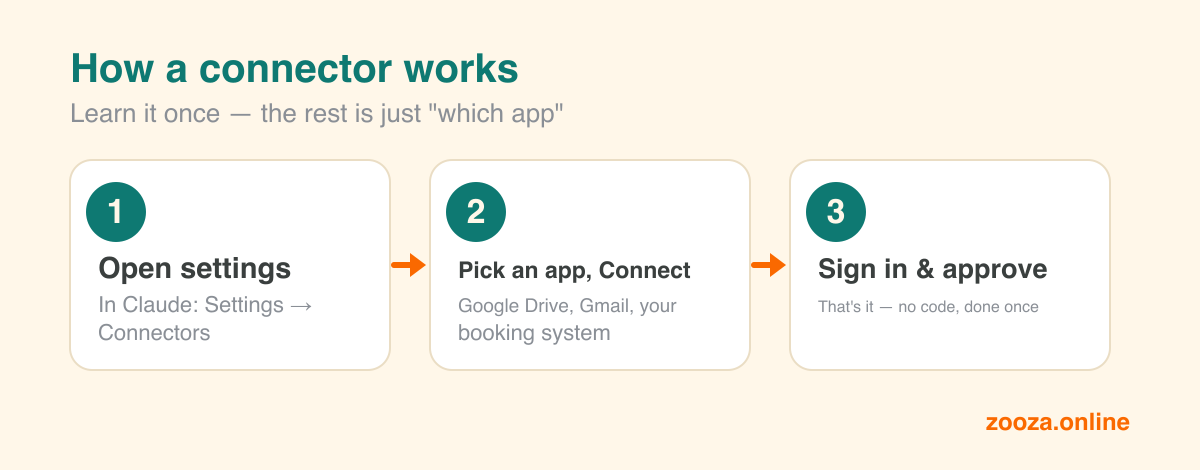
Every recipe below rests on the same 30-second mechanic. Learn it once here and the rest is just "which app."
- Open your AI tool's settings. In Claude go to Settings → Connectors (in ChatGPT it's Settings → Connected apps).
- Pick the app and click Connect. Google Drive, Gmail, your booking system. You'll see exactly what permissions it's asking for.
- Sign in to that app and approve. Same login you already use. That's it — the AI can now read (and, where you allow it, act) in that app.
Hat 1 — Operations: how do I turn a photo of my schedule into a live, bookable term?
The short answer: connect your booking system to your AI tool, upload a photo of your timetable — a whiteboard, a spreadsheet screenshot, a sketch — and ask it to build the term. It reads the intent and creates the classes, sessions and prices, then waits for your yes before anything goes live.
This isn't a thought experiment. A Zooza customer dropped a screenshot of an Excel schedule into an AI chat connected to her account and got a full autumn term built: six class groups expanded into 68 scheduled sessions across four venues, each class placed with the right instructor, with the October half-term automatically skipped. We filmed ourselves reproducing it in one unedited take — one photo, one sentence, a term live and bookable.
| The task | Doing it by hand | With an AI connector |
|---|---|---|
| Build a term's schedule | Two evenings in the schedule builder, dozens of sessions by hand | One photo + one sentence → preview → confirm |
| Match instructors & venues | Manual assignment, one by one | Matched from first names in the photo |
What to connect: your booking system's connector (this is the hat Zooza owns — Zooza Assistant is a live example). ✅ One-click, then just ask.
Hat 2 — Reporting: how do I ask my business a question without exporting anything?
The short answer: with a reporting connector you type the question in plain English — "Who hasn't paid for the autumn term?", "Show me last week's attendance by class", "Who's on the waiting list for Tuesday toddlers?" — and get the answer back as a table. No export, no spreadsheet, no BI tool.
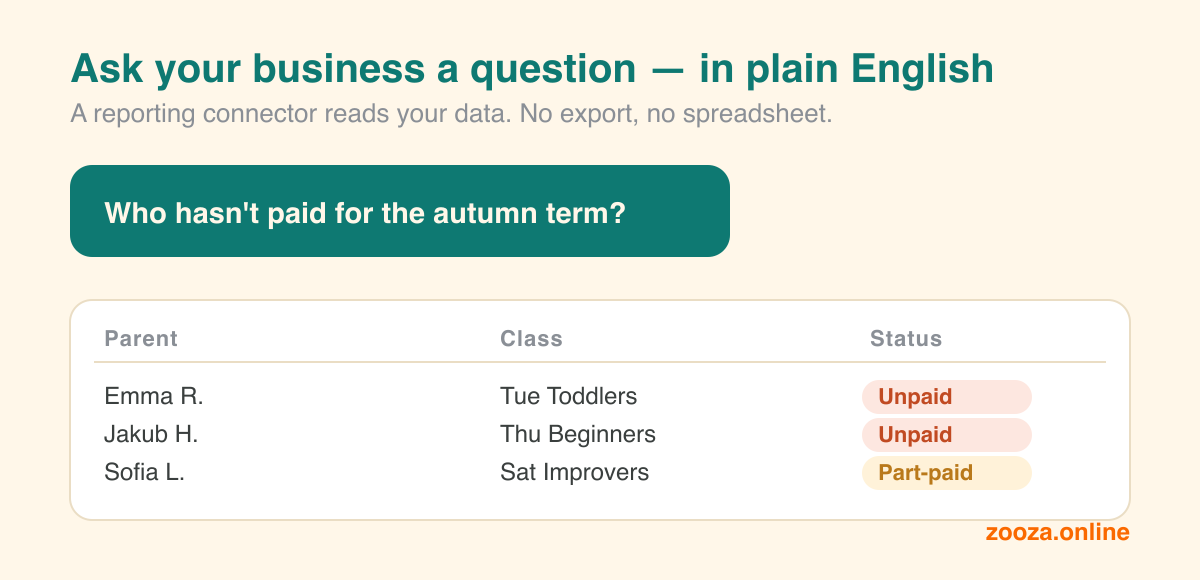
This is the strongest, most honest "wow" in the whole list, and it comes in two flavours you can run side by side:
- Your booking data — unpaid rosters, attendance, retention term-over-term. Build the exact report you run on by describing it, not by configuring it.
- Your website data — Google's official Analytics (GA4) MCP lets you ask "which class page converted best last month?" or "where did my September sign-ups come from?" — read-only, so it never touches your setup. Honest note: it's official but developer-setup today, so it's a "get a hand to switch it on once" job, not a one-click toggle.
What to connect: your booking system's connector for operational data (Zooza), plus the GA4 connector for web data. ✅ One-click, then just ask — as long as your software actually offers a connector. Ask your provider; if the answer is a blank stare, that tells you something.
Hat 3 — Invoicing: how do I connect bookings to my accounting software?
The short answer: Xero — one of the more global accounting tools, and a fair stand-in for how the others are moving — publishes an official MCP connector. An AI assistant can create invoices, manage contacts and pull financial reports in plain language. Think "an accountant you can ask a question," not an autonomous finance bot.
What to connect: Xero's connector (directly or via a broker). Your booking system stays the source of truth for who owes what; the accounting tool turns that into invoices. ⚠️ Real, but not always one-click.
Hat 4 — Customer care: how do I triage parent emails and draft the replies?
The short answer: connect Gmail and the AI can search, read, summarise and draft replies to the flood of parent questions — "Draft an answer to everyone asking about the summer camp waiting list." It writes; you keep your hand on the send button.
The magic multiplies when your booking connector is on at the same time: the AI can read the actual booking, waitlist and payment status behind an email and write a reply that's correct, not generic — "Yes, there's one spot left in Tuesday toddlers, here's the booking link" — because it checked.
What to connect: Gmail (for the inbox) + your booking connector (for the facts). ✅ One-click. Keep "send" as a human step and let it draft — safest and still saves the hour.
Hat 5 — Email assistant: how do I stop living in my own inbox?
The short answer: Gmail plus Google Calendar turns the AI into a chief-of-staff for your own admin. "Draft follow-ups to the three families who enquired but didn't book." "Find two gaps next week to run a make-up class and hold them." It reads your calendar, drafts the emails, and books the slots — on your confirmation.
What to connect: Gmail + Google Calendar. ✅ One-click, then ask.
Hat 6 — Marketing: how do I generate a whole term's social posts?
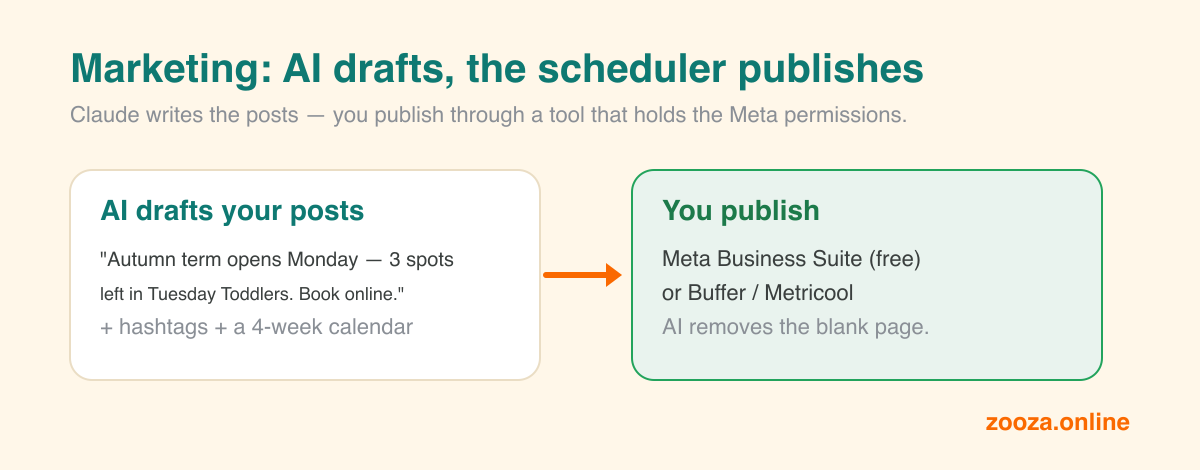
The short answer: point the AI at your brand assets on Google Drive — logos, photos, last year's copy — and ask it to draft a term's worth of posts and a content calendar in your voice. It reads the folder and writes; the words and the plan come back in minutes.
Bonus recipe — a video invitation without a camera: ask the AI to write a warm 30-second script ("Hi, I'm Sarah from Little Swimmers, autumn term opens Monday…"), then paste it into a tool like HeyGen, which turns a script into a talking-avatar video — even a digital twin of you from a short phone clip. AI writes, HeyGen renders. There's no connector between them, so it's copy-paste, and it's a paid tool — but it's a real way to ship a personal video you'd never find time to film.
What to connect: Google Drive (for assets). ⚠️ AI drafts, you publish elsewhere.
Hat 7 — Content & SEO: how do I actually produce the website content?
The short answer: the same Drive-fed AI that drafts social will draft your blog posts, class descriptions and landing-page copy — grounded in your real programmes and prices because it can read them. This is about doing the content work: turning "I should really write about our new toddler class" into a finished draft you edit and publish.
(Being found and cited by AI search engines is a related but separate craft — that's about how you structure the page, and we cover it under AI visibility rather than here.)
What to connect: Google Drive (assets) + your booking connector (for accurate class facts). ✅ One-click for drafting; publishing to your site depends on how it's built.
"But that one needs a developer" — here's the bridge
Three of the seven recipes carry a ⚠️ because the official connector is developer-setup today. Here's the honest, hopeful truth: you almost never have to be that developer. Pick the bridge that fits — none of these needs you to touch a terminal.
- Paste a URL, sign in. Claude lets you add a remote connector without code: Customize → Connectors → Add custom connector → paste the URL → sign in. If a tool hands you an MCP link, that's the whole job — Claude never even sees your password. (Anthropic's own steps.)
- Rent the bridge — no terminal. A hosted broker like Zapier MCP ("set up in minutes, no config files") or Pipedream lets you connect your Xero or Google Analytics with a normal sign-in and hand Claude one URL. It's a sign-up-and-connect, not magic — but no code, and free to start.
- Check the app first — it may already be done for you. More tools now ship their own hosted connector, and some solve it without AI entirely — Xero's native Stripe connector, for instance, auto-reconciles card payments with nothing to build. Look in the app's own app store before you assume you need to build anything.
- Don't want AI at all? The classic no-code path still delivers the outcome. A Zapier or Make template turns "new booking" into a Xero invoice; free schedulers (Buffer, Metricool, Meta Business Suite) handle your social. Same result, no AI — just budget a little time for the field-mapping the first time.
- Or hire it once. A freelancer can stand a connector up for roughly a one-time £75–700 (hosting is often £0/month), and from then on you just type plain English. It's non-technical to use — you simply own a small piece of plumbing that occasionally needs a hand.
Where to start — and the one thing that ties it together
Don't try to wear all seven hats with AI at once. Pick the one that steals your evenings — for most operators that's Hat 1 (building the term) or Hat 2 (answering "who hasn't paid?"). Both are clean, one-click-then-ask recipes, and both pay back the setup in the first week. Leave the recipes with a middle step — social publishing, video — for after you've felt that first win. If you'd rather browse a grab-bag of quick wins first, our lighter list of AI tips to try this week is the companion to this connector-by-connector guide.
Notice the pattern underneath all seven: the recipes that just work are the ones where your data has a real connector. Reporting, admin, invoicing and correct customer replies all lean on your booking system being connectable in the first place — the operational spine the other tools plug into.
That spine is exactly what Zooza's connector gives you, and where the deeper integrations — accounting, reporting, your own tools — plug in. Want to feel Hat 1 or Hat 2 on your own data? Start free and try one recipe on your next term. One hat lighter is a good week.